Can Blackboard Detect Switching Tabs? Proctoring Facts

Can Blackboard Detect Switching Tabs

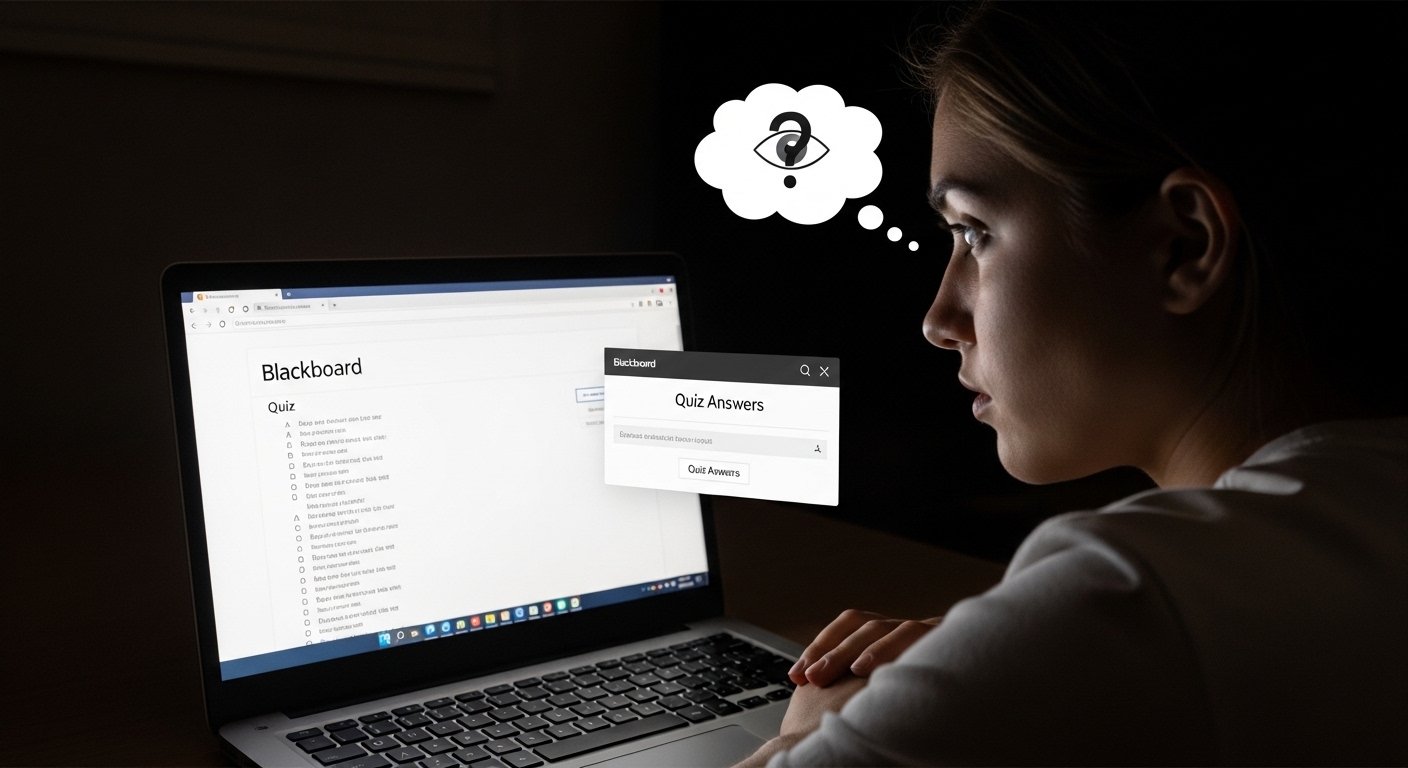
Blackboard Learn by itself does not reliably detect when a student switches browser tabs during an unproctored test; detection requires added proctoring or lockdown tools that restrict or record activity. When institutions enable third-party proctoring (or use a lockdown browser), instructors and proctoring services can generate flags for tab-switching, lost focus, or other suspicious behaviors.

Proctoring Detection Summary

Blackboard alone cannot meaningfully see or log every tab a student opens; meaningful detection depends on integrated proctoring (e.g., LockDown Browser or Respondus Monitor) or instructor-enabled logging. If your institution requires proctoring, assume focus changes, app switches, and webcam evidence may be recorded and reviewed under academic integrity rules.

Why Online Exam Integrity Matters for Your Academic Success?

Clear, reliable assessment systems matter because they preserve the validity of credentials employers trust. Instructors and assessment admins choose tools and policies that balance exam security, student accessibility, and legal/privacy constraints, exactly the factors that make a course-level artifact credible on a transcript or portfolio.

How Blackboard and Proctoring Tools Handle Tab Switching, Monitoring, and Policy?

Below are concise, authoritative explanations for each major domain you asked to cover. Each section explains what Blackboard or proctoring tools can do, what they cannot do without add-ons, and the policy/ethical implications.

Blackboard Proctored Exam Detection

Blackboard itself can host exams and expose whether an assessment is delivered with a proctoring integration; actual detection of user behavior (screen, webcam, active window) usually comes from the proctoring service integrated with Blackboard. Institutions enable those services on a per-test basis; instructors can see if a test is marked “proctored” in the course interface.

Blackboard LockDown Browser Monitoring

When an instructor requires a lockdown browser, students must open the assessment in that dedicated application. LockDown Browser limits navigation, disables copy/paste, and prevents minimizing or switching to other apps; repeated or sustained focus loss can trigger warnings or terminate the session, depending on settings. These behaviors are enforced by the lockdown application rather than Blackboard’s base LMS.

Can Blackboard See Your Screen?

No, not by default. Blackboard Learn (the LMS) does not have built-in screen-recording or continuous screen-capture capability. Screen and webcam recording are provided by integrated proctoring tools (e.g., Respondus Monitor, Proctorio, ProctorU) if enabled; those tools may record video/audio and, in some cases, capture screen activity. Always check the exam’s proctoring requirements before you start.

Can Blackboard Detect Cheating?

Blackboard can help instructors detect suspicious patterns indirectly (time stamps, submission history, similarity reports via plagiarism detectors), but it cannot independently prove cheating from a tab change. Conclusive detection commonly relies on a combination of logs, proctoring recordings, and instructor investigation. Institutions typically treat flagged events as evidence requiring review, not automatic proof.

Blackboard Activity Logs

Blackboard records standard interaction data (access times, submission timestamps, attempt logs). These logs show when a student opened or submitted an assessment and may indicate inactivity windows, but they do not show every tab or application on the student’s device. Instructors use logs in combination with proctoring records to form a fuller picture of student behavior.

Blackboard + Respondus LockDown Browser (Integration specifics)

Respondus LockDown Browser integrates with Blackboard to enforce a locked testing environment: full-screen display, disabled navigation, blocked printing/screen-capture, and prevention of task-switching. Respondus Monitor (the webcam companion) can record video and use analytics to flag unusual behavior (multiple faces, frequent off-camera glances). Institutions configure tolerance and review thresholds.

Does Blackboard Track Browser Activity?

Not inherently. The LMS can log activity within the Blackboard site (pages visited, time stamps). Tracking across other browser tabs or applications requires a lockdown or proctoring tool installed on the student’s machine; without those tools, cross-tab tracking is not provided by Blackboard alone.

Switching Tabs Detection

Detection of tab switching falls into three cases:

  1. Unproctored + standard browser: Blackboard cannot reliably detect tab switches.
  2. Proctored with LockDown Browser: the lockdown environment prevents switching or flags/terminates attempts to leave focus. Warnings are commonly issued on first focus loss; repeated losses can end the session.
  3. Remote proctoring with screen capture: proctoring services that record/stream screens or webcam sessions can reveal evidence of looking away or off-screen activity during review.

Browser Activity Tracking (Technical limits and privacy)

Browser APIs allow a page to detect whether it has focus (i.e., whether the user is actively viewing that tab), but that signal is coarse and can be ambiguous (notifications, OS behaviors). Because of privacy, performance, and legal considerations, LMS vendors and institutions generally avoid surreptitious cross-application surveillance; instead, they implement transparent proctoring tools that require consent and system permissions. Always consult your institution’s privacy and accessibility documentation before an exam.

Academic Integrity Policy (Policy and enforcement)

Academic integrity policies determine how detected anomalies are adjudicated. Flags generated by logs or proctoring tools are typically reviewed by faculty or academic conduct officers; most institutions treat automated flags as leads for human review rather than automatic sanctions. Students should be familiar with the specific policy language covering proctored exams, permitted materials, and appeal procedures at their university.

What happens after a flag?

  • A proctoring/trust agent review, then an instructor investigation.
  • Students may be contacted for explanation or asked to provide context.
  • Sanctions, if any, follow institutional conduct procedures and range from a warning to failing the exam or course.

The Economic Side of Digital Exam Monitoring

When an institution evaluates proctoring technologies or an instructor decides whether to require a lockdown, consider these ROI variables:

  • Tuition/Revenue vs. Integrity Costs: Robust proctoring reduces credential risk (protecting institutional reputation) but carries licensing costs for software and staff time for review.
  • Student Opportunity Cost: Mandatory proctoring can add time for setup, device checks, and possible rescheduling. If technical issues occur; this can consume student study time and create access burdens.
  • Administrative Time (hidden cost): Reviewing flags, resolving appeals, and addressing false positives require staff/faculty hours.
  • Legal/Privacy Risk: Heavy monitoring increases compliance costs (data protection, accessibility accommodations).
    Decision leaders should weigh the financial and pedagogical benefits of stronger security against these direct and indirect costs. Transparent communication and reasonable accommodations often improve both fairness and effectiveness. (Institutional guides and vendor documentation describe these tradeoffs and implementation considerations.)

What Students Must Know Before a Proctored Exam?

  • Assume the exam environment described by your instructor is enforced. If LockDown Browser or a proctoring service is required, follow the setup steps and review the privacy disclosures.
  • Do not attempt to evade monitoring. Attempted circumvention is usually an explicit violation of the academic integrity policy and can lead to disciplinary sanctions.
  • If you have accessibility needs or technical constraints, request accommodations well before the exam window. Institutions provide alternatives or support rather than leaving students unaccommodated.
  • Preserve evidence of technical failures. If a technical interruption occurs (connectivity or proctoring failure), collect screenshots and timestamps and inform support promptly.

Conclusion

Blackboard alone cannot reliably detect tab switching; meaningful detection depends on integrated tools (e.g., LockDown Browser, remote proctoring) that may block or record focus changes. Students should assume proctored exam settings are enforced, follow institutional Academic Integrity policies, and request accommodations ahead of time if needed. Automated flags prompt human review; attempting to circumvent monitoring may lead to disciplinary action, so promptly document and report any technical failures to exam support.

FAQs

Will Blackboard report me for switching tabs?

Only if the exam uses a lockdown/proctoring tool that records or restricts tab switching; Blackboard alone does not automatically report tab changes.

Can I be flagged for looking away from the screen?

Yes, if a webcam proctoring tool is active, glances away may be flagged for manual review.

Is switching tabs proof of cheating?

No. A tab change is a behavior that may warrant review, but it is not conclusive proof of dishonesty by itself.